Preflight Actions
Getting Started
How to quickly import, and correct files for print.
Add a file to Good2Go
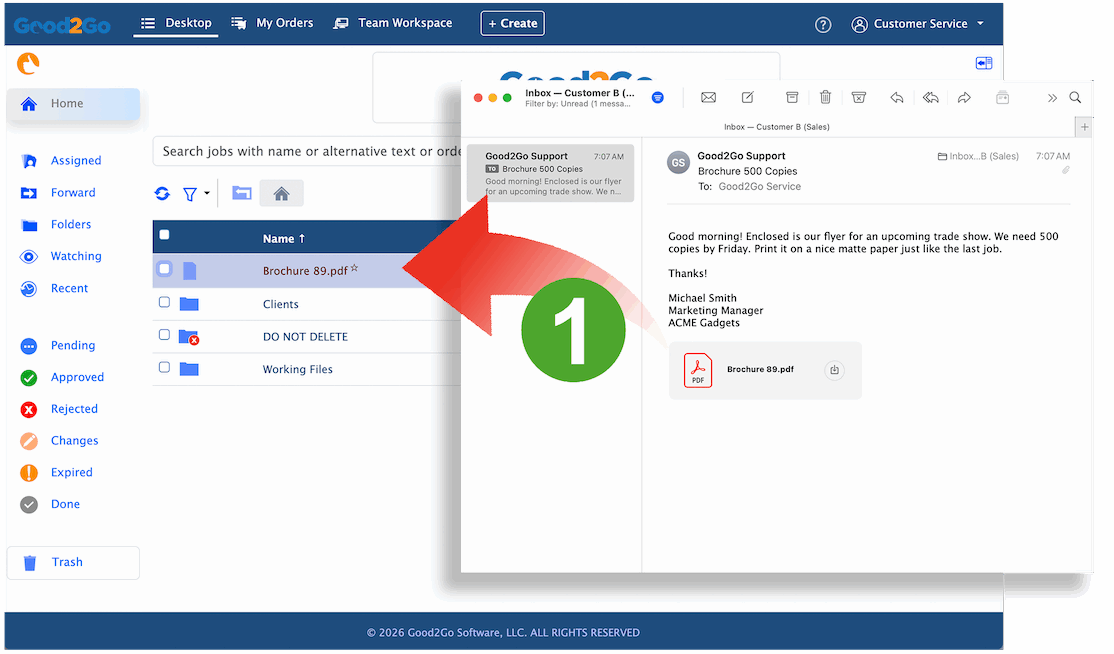
1. Drag & drop
Click and drag PDF files directly from your computer desktop or email client into Good2Go.
Good2Go can import most file types, but PDFs are required for preflight actions.
Select “Preflight Actions”
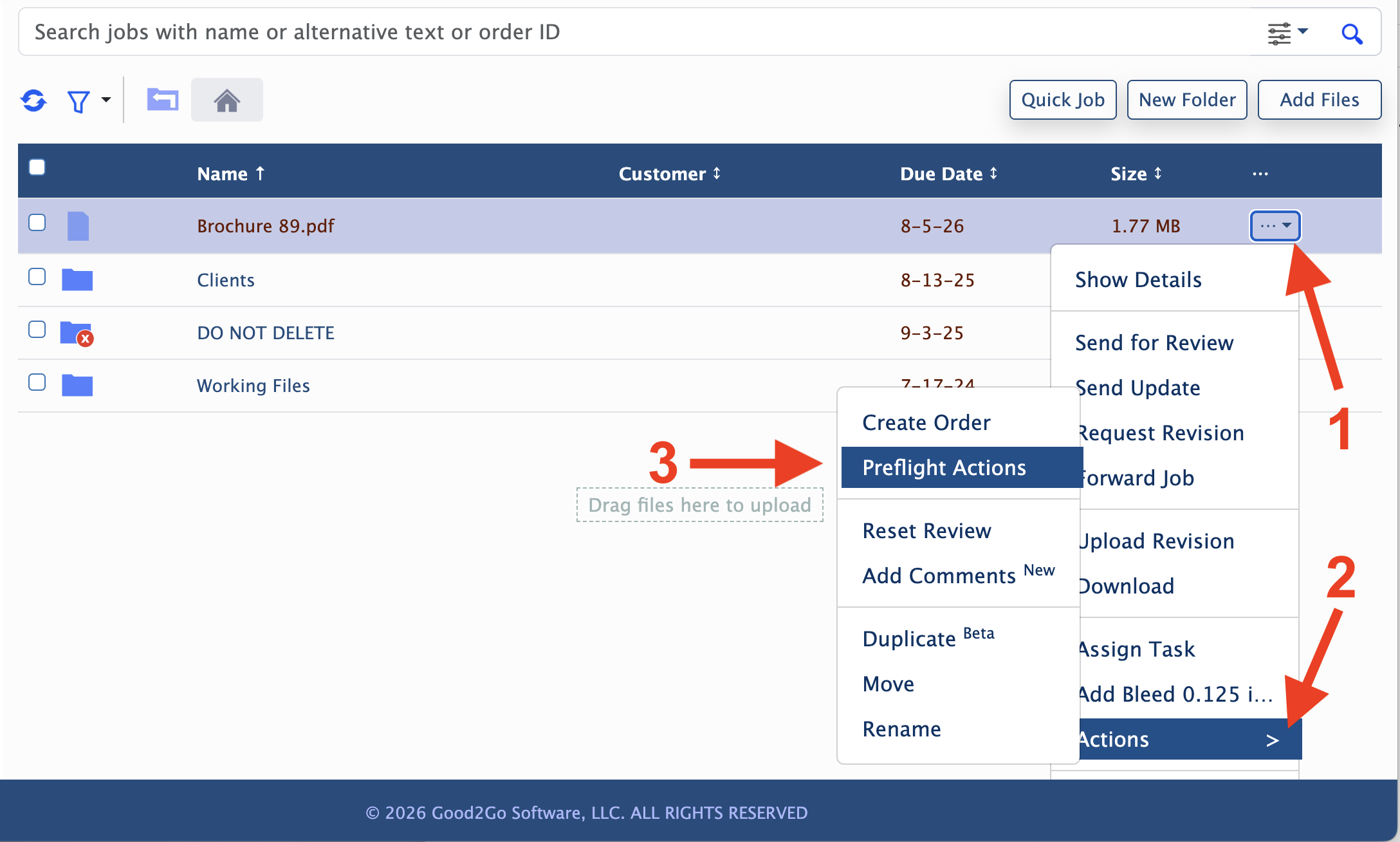
2. Open Preflight Actions
Open the context menu, (1) select the “Actions” sub-menu (2) and select “Preflight Actions” (3).
Good2Go can import most file types, but PDFs are required for preflight actions.
Apply and create action
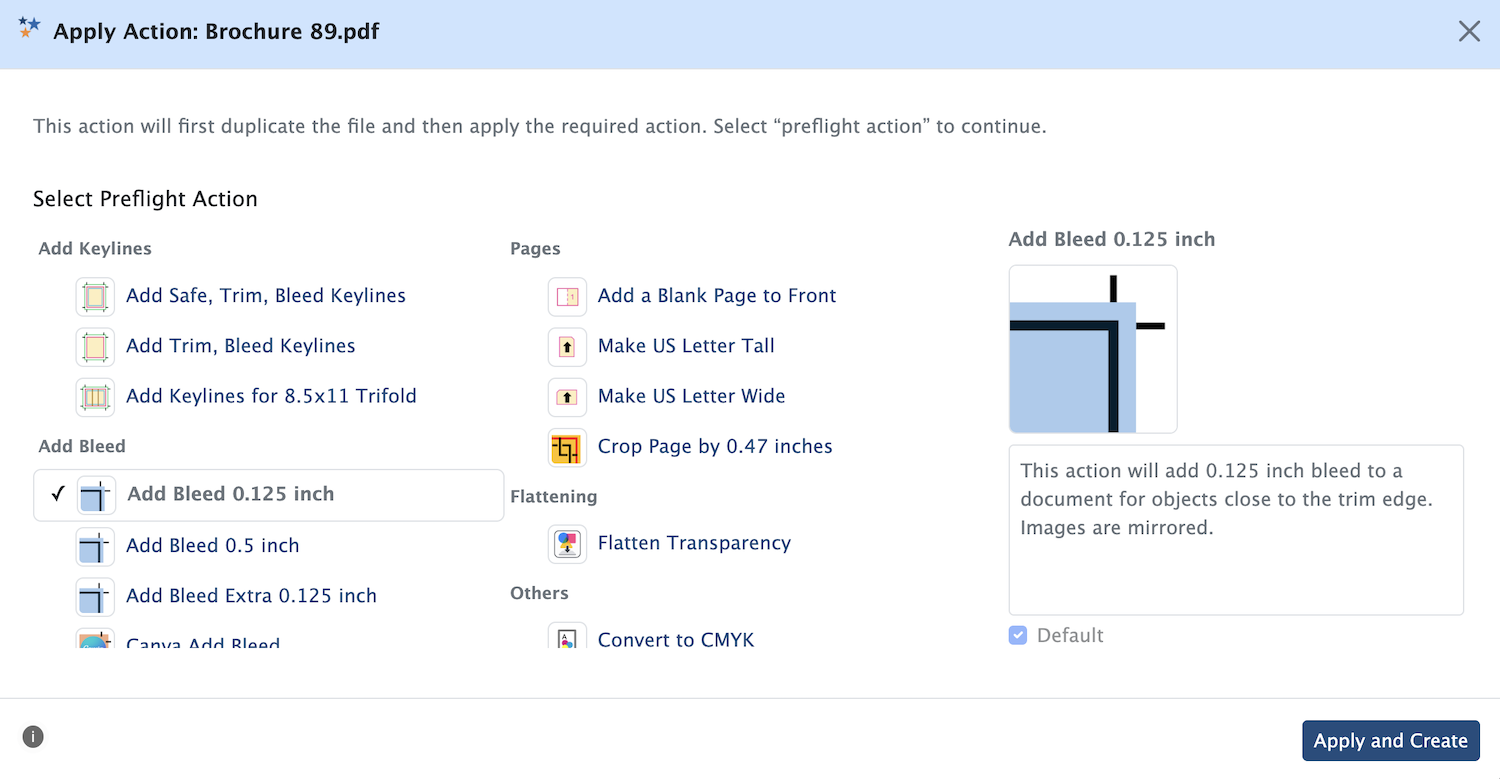
3. Select action and apply
Select the desired action and then “Apply and Create” to start the processing.
Note that you can define one of the actions as your default action.
What happens next

4. Copy is made
Good2Go makes a copy of the PDF to preserve the original.
Note that the file may take seconds, up to several minutes. Double click the file name to open the details and check the processing status.
Download for production
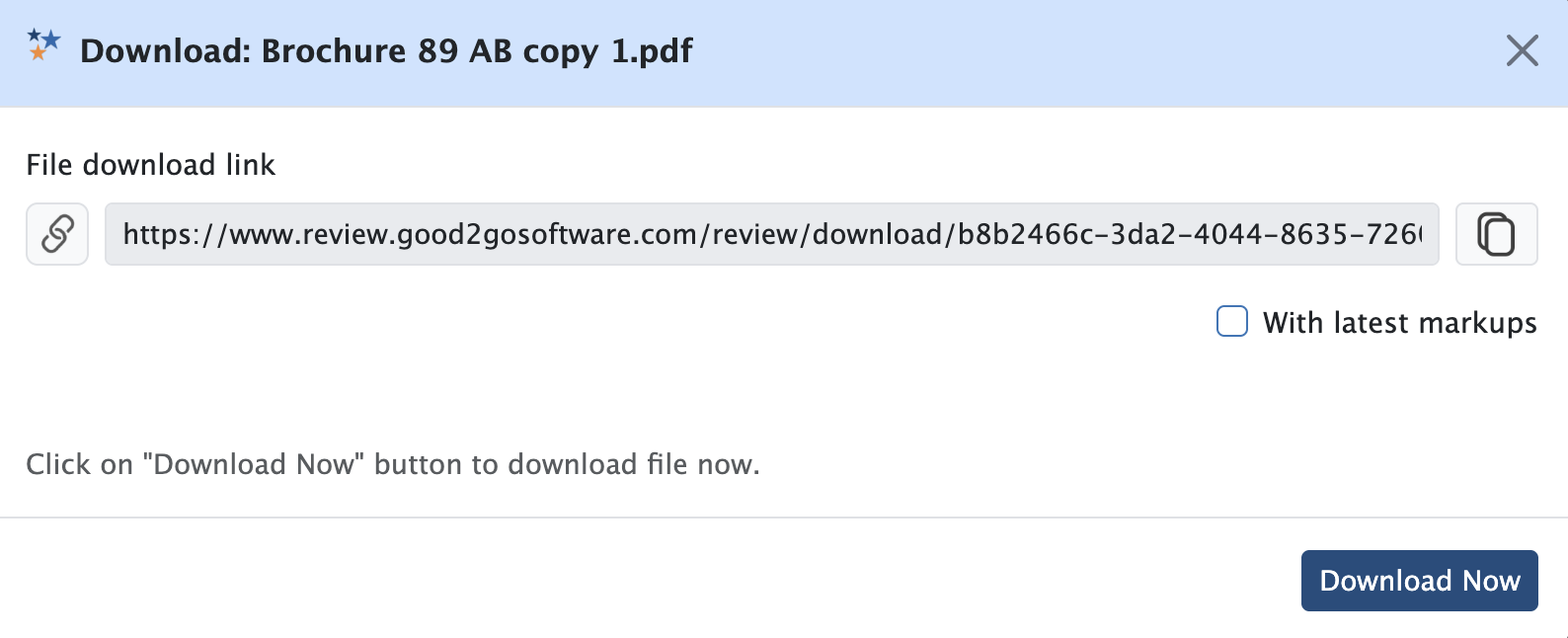
5. Download the file
Select the context menu and select “Download” to download the file to your local computer.
Note that the file may take seconds, up to several minutes. Double click the file name to open the details and check the processing status.
Want to know more?
Schedule a training session, or email us to get training, and your questions answered.